 ColdCorners
Frequently Asked Questions
Learn how to choose which macOS Hot Corners work on each display, pause them for a presentation, and record a keyboard shortcut in ColdCorners.
Getting started
How do I set up my first corner?
- Open ColdCorners. In Permissions, choose Enable Permission and grant the access requested by macOS.
- In the ColdCorners tab, choose Open Hot Corners Settings... and pick the action you want that corner to trigger in macOS.
- Return to ColdCorners, turn on Enable ColdCorners, choose Block selected corners, and check that corner on the display where you want it blocked.
Uncheck the corner to let it activate again. Turning off ColdCorners or quitting the app restores normal Hot Corner behavior and preserves your assignments in macOS.
Which Hot Corner actions can I use in macOS 27?
ColdCorners works with all ten actions in the macOS 27 Hot Corners menu. To choose one, open System Settings, select Desktop & Dock, then click Hot Corners.
- Mission Control
- Application Windows
- Desktop
- Notification Center
- Apps
- Quick Note
- Start Screen Saver
- Disable Screen Saver
- Put Display to Sleep
- Lock Screen
-(no action)
To require a modifier, hold Shift, Control, Option, Command, or a combination while choosing an action. Hold the same keys when moving the pointer into that corner.
Does ColdCorners work with third-party Hot Corners apps?
I've tested ColdCorners extensively with the Hot Corners built into macOS. I expect it to work with third-party Hot Corners apps too, though I haven't tested them yet.
If ColdCorners doesn't work with an app you use, email support@docklock.pro. Tell me the app's name and version and what happens when you move the pointer into the corner. I'll use those details to reproduce the issue and work on a fix.
How do I read the display map?
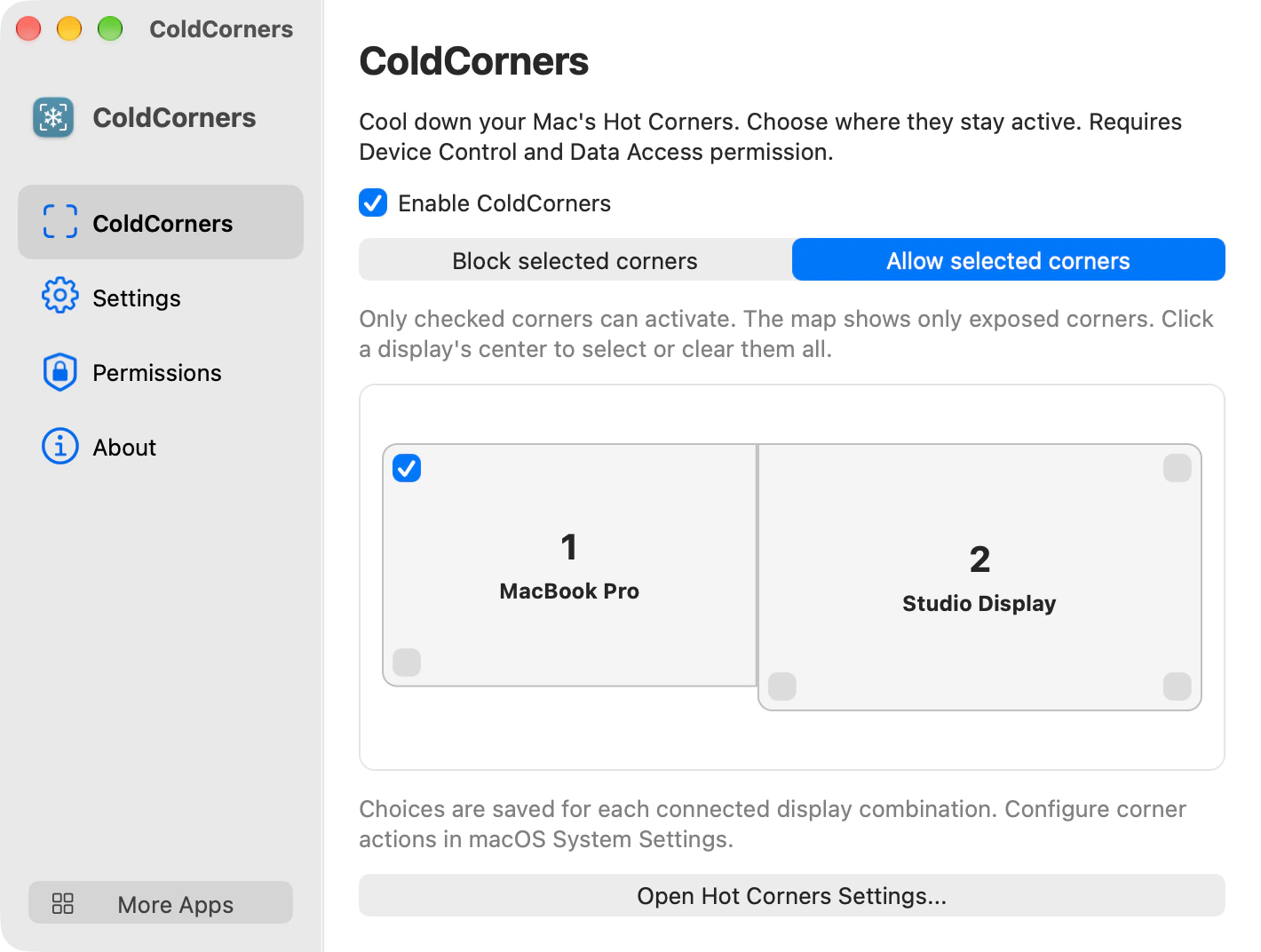
In Block selected corners mode, each checkmark blocks that corner. In Allow selected corners mode, only checked corners can activate. Click the center of a display to select or clear all its exposed corners at once.
The map follows your arrangement in macOS. A corner that opens directly onto an adjacent display can disappear from the map because the pointer can travel through it.
Can I assign a different Hot Corner action to each display?
macOS uses the same action for a given corner across displays. For example, if your top left Hot Corner shows the desktop, ColdCorners lets you allow that corner on your MacBook and block it on your external display. Your usual keyboard shortcuts and trackpad gestures still work.
What happens when I disconnect a display?
ColdCorners remembers the mode and corner selections for each combination of displays. Disconnect your monitor to switch to your laptop setup. Reconnect it to restore your desk setup.
Timers, shortcuts, and the menu bar
Can I block every corner during a presentation?
Open the ColdCorners menu bar icon and choose Block All Hot Corners. Pick 5, 15, or 30 minutes, 1 or 2 hours, or Until Turned Off. During a timed block the menu shows the end time.
Your previous settings return when the timer expires. Choose Use Saved Settings to restore them sooner or to end an indefinite block.
How do I turn corner locking on or off with the keyboard?
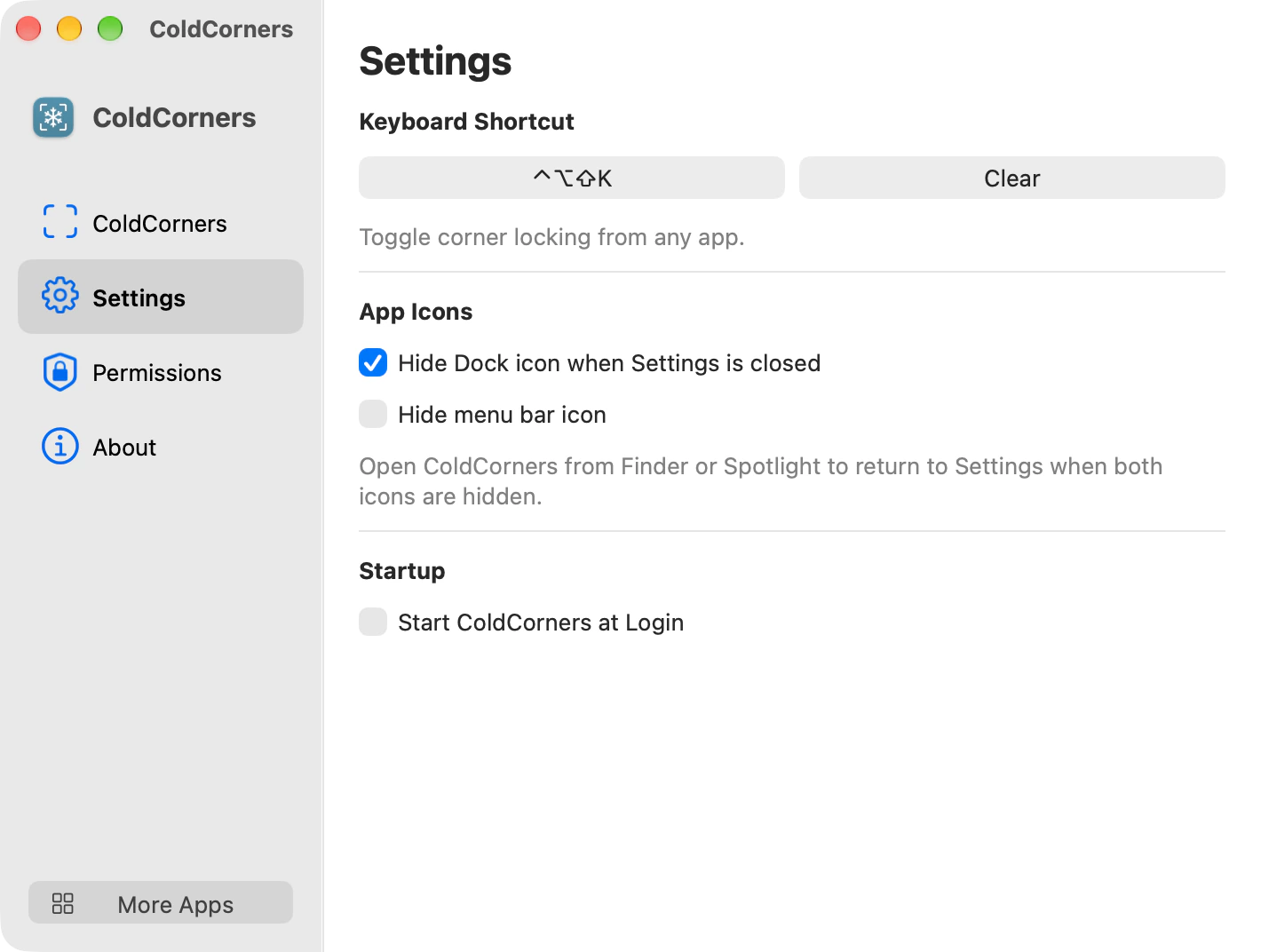
Open the Settings tab. Under Keyboard Shortcut, click Record Shortcut. Press a function key, or hold Command, Control, or Option and press another key. Escape cancels recording.
The shortcut works from any app while ColdCorners is running. Click the saved shortcut to replace it or Clear to remove it.
Can ColdCorners start quietly at login?
On macOS 13 and later, turn on Start ColdCorners at Login in Settings. On earlier versions, add ColdCorners to your login items manually. Leave the menu bar icon enabled for a login launch with Settings closed.
How do I get back to Settings if I hid the icon?
Open ColdCorners from Finder or Spotlight. This brings Settings forward even if the app is already running. Closing Settings leaves your corner rules active.
What do the two menu bar icons mean?
A snowflake inside the four corner marks means ColdCorners is ready to apply your rules. Four empty corner marks mean filtering is off or unavailable. Check whether ColdCorners is enabled and the system permission is granted. See both menu bar icons.
Permissions and troubleshooting
Why does ColdCorners need Device Control or Accessibility?
A Hot Corner can trigger while any app is in front. ColdCorners uses this permission to filter pointer movement and dragging in the small area at each blocked corner, before macOS activates the assigned action.
The permission is called Device Control and Data Access on macOS 27 and later and Accessibility on earlier versions. You can revoke it in your Mac's privacy settings. Read the Privacy Policy.
What if ColdCorners is missing from the permission list?
In the Permissions tab, choose Show App in Finder. Add ColdCorners.app to the macOS permission list with the add button or by dragging it into the list. Turn on its switch and return to ColdCorners.
Why does a corner behave differently than I expect?
First turn off Enable ColdCorners and test the action assigned in macOS. Hold any modifier key you assigned to it. If it works, turn ColdCorners back on and check the permission, the current display map, the selected mode, and whether a timer is active.
If the behavior persists, contact support with your display arrangement and the corner you tested.